Converting a PSD(PhotoShop Document) to HTML, CSS, all we have to do is slicing and converting. All this might be confusing but yes that is all we have to do.
First, we need to have a PSD file.But how to do we get that? Its simple, we can create one by ourselves in Adobe Photoshop or any other comfortable editor. Try to add more layers, images and represent text in different formats, this will be helpful in getting more experience.If you could not find anything in the first place, do not panic but just explore it more and more, you will definitely find a way (Remember, no one can teach you better than you do to yourself) .
So, now we have our PSD file ready. Now we have to open a IDE like Net beans or Eclipse. Create empty HTML and CSS files so that we can add code for the items we have sliced in the PSD.
Slicing a layer in Photoshop
This can be done in PhotoShop by using Slice Tool. Just select a part of the PSD you want to replicate in the browser page and save it in an image format (JPEG, PNG) .

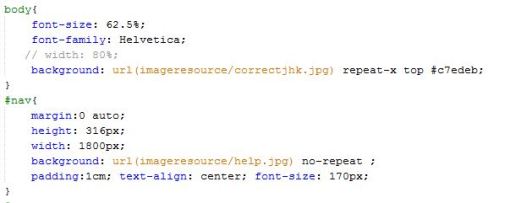
Converting to CSS Code
If it is a background and it goes like a banner like shown above, then the CSS can be like body to use repeat-x to repeat the background image along x-axis, if it is just an image then CSS can be like #nav
Selecting a text in PhotoShop
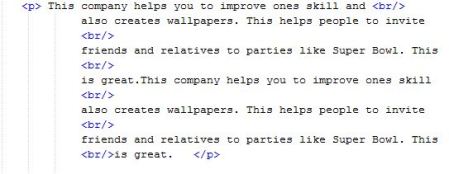
Select Horizontal Type Tool and click on the paragraph and it allows to copy the text and this text can be posted in the HTML file. This text can be placed in a <p> tag, there are many alternatives for this tag. Choose the best tag which meets your requirement.
Replicating Image from PhotoShop to HTML
If you have a image to replicate then put the image in a new folder in the project in IDE. (In this example, imageresource is a folder) .now, give reference to the image as below in the HTML file.

Tip: Refresh the browser to see the changes effected after every single change done to the code. This helps to keep track of any mistakes.
Simple, This way you can convert a PSD file o HTML file 🙂
 I~wiish